If you are not satisfied with the product for any reason, please contact our after-sales support email. We will do our best to resolve the issue and respond to your inquiry within 24 hours.
After-sale Email: hgznsm@gmail.com
Please refer to the instruction manual before use
Precautions before use:
- 1. The company reserves the right to modify the content of this manual without prior notice. Some functions may vary in specific software versions, which is normal.
- 2. Please charge the product for more than 2 hours before use.
- 3. Before using the product, please download the connection app on your mobile phone. Connecting the app can synchronize the watch time and set personal information. For details, please refer to the instructions for using the synchronization software later.
1: Product Overview
Recommend using the mobile phone model version (if the version is too low, there may be connection issues):
- Android phones: support operating system versions 5.0 and above;
- Apple phones: support operating system 9.0 and above versions.
2: Watch Charging
This product is a magnetic charging device, with one end of the charging cable connected to the charging adapter via USB and the other end attached to the contact point on the back of the watch. The watch screen will display a charging indicator, indicating the start of charging.

Note: Connect the USB port to a charger or computer USB port with an output current of 5V 500mA or higher for charging.
3: APP download and APP connection methods
3.1 Scan the QR code below to download the APP software.
Use a browser to scan the QR code below or find the download QR code in the watch settings. During the download and installation process, please grant the corresponding permissions to this software to ensure proper wireless connectivity. The name of the APP software is: GloryFit
Special attention:
- 1. For Apple phones, if the app is not used for a long time (12 hours or more), the app will be cleared by the phone’s IOS system. At this time, the app will be disconnected from the watch, and the GloryFit app function will not be available. If you turn on the push function, it can be used normally. Opening the app again will automatically reconnect the watch.
- 2. After installing the APP software on an Android phone, you need to open the background application startup permission in the phone’s settings, which may vary depending on the phone model.
3.2 APP application and watch connection method:
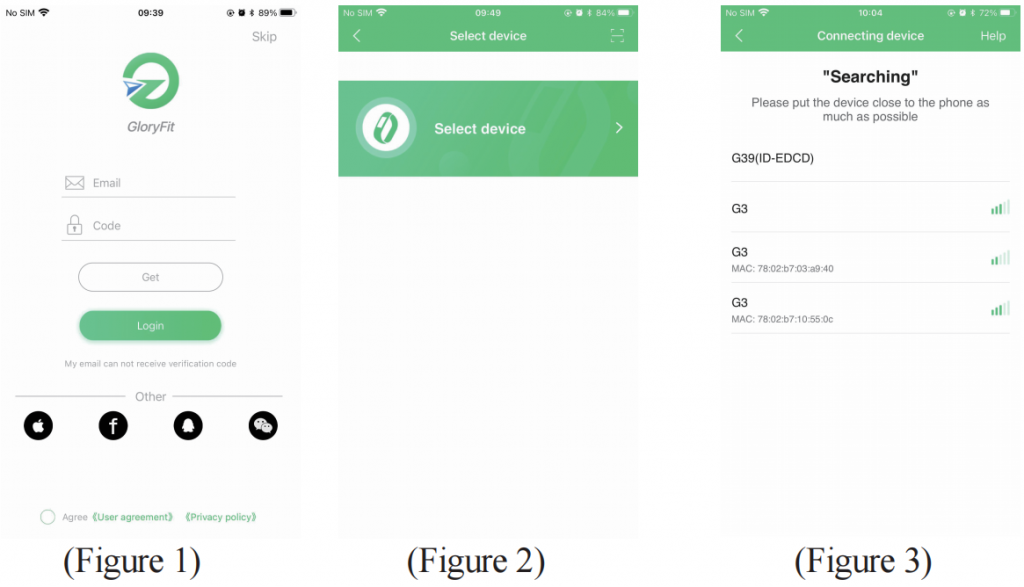
- 1. Open the downloaded app and select “Email” or “Third Party Login” (as shown in Figure 1).
- 2. After successfully logging in, click “Select Watch” (as shown in Figure 2) to enter the “Add Device” interface. Click and select the wireless function name of the device you purchased (as shown in Figure 3) to successfully connect.
You can unpair the watch from the mobile app.
Attention: For IOS system, you need to enter Settings – Wireless
Function and ignore wireless function pairing in order to fully unbind.
4: The main functions of a smartwatch
- 1. Basic Operations
- 1.1 Power on: When the watch is turned off, press and hold the watch side button for 3 seconds to turn it on; In standby mode, short press the side button to wake up the watch.
- 1.2 Shutdown: When the watch is on, long press the side button for 3 seconds or select shutdown in the settings to enter the power on/off selection interface. Select “X” to exit the shutdown interface, and select “√” to directly shut down.
- 1.3 The watch interface switching operation is shown in the following figure:
- 1. Slide the dial interface from top to bottom to enter the status bar interface
- 2. Slide the dial interface from right to left to enter the shortcut function interface
- 3. Slide the dial interface from left to right to enter the menu interface
- 4. Slide the dial interface from bottom to top to enter the information notification interface
- 1.4 The status bar interface displays functions such as searching for mobile phones, adjusting brightness, about, settings, connection status, and displaying battery level.
- 2. Dial switching
- Long press the screen for 2 seconds on the dial interface to enter the switching interface, slide the screen left and right to switch dials, and select the dial with a single click.
- 3. Status
- After the device is turned on, the step counting function is enabled by default, displaying real-time step counting data and popularity for the day. After the watch is successfully paired with the app, the exercise data will be automatically synchronized in real-time (or manually refreshed) and uploaded to the app, including parameters such as step count, distance, calories, etc.
- Attention: Please connect to the app to synchronize the time and set personal information before exercising. Avoid clearing watch data and ensuring data accuracy when synchronizing apps.
- 4. Exercise
- 4.1 Sports modes include: outdoor running, cycling, skipping rope, badminton, table tennis, tennis, mountaineering, brisk walking, basketball, football, baseball, volleyball, etc., totaling 100+.
- 4.2 Click on the corresponding motion icon to enter the corresponding motion mode and start the motion. Attention: Sports data will not be saved to the app and can only be viewed on the watch.
- 5. Notification (Information)
- After successfully pairing with the phone, you need to open the APP reminder function. The information received in the phone status bar will be synchronized to the watch, which can only be viewed and cannot be replied to. Voice messages can only be displayed and cannot be listened to. (By default, 8 messages are retained, and there is a clear button at the bottom of the message list. Clicking clear will delete all messages. If there are more than 8 messages, the earliest message will be automatically overwritten.
- 6. Wireless music
- After connecting the phone, you can play music from the phone through the watch, which can be played, paused, and switched from one track to the next.
- 7. Weather
- The weather interface will display the current weather. The weather information can only be obtained after connecting to the app. If the connection is disconnected for a long time, the weather information will not be updated.
- 8. Settings
- 8.1 Click on Settings to enter the settings interface, which includes shutdown, APP download QR code, factory reset, and related functions.
- 8.2 Shutdown: Click to enter the shutdown selection interface, select “X” to exit the shutdown interface, and select “√” to directly shut down.
- 8.3 APP download QR code: Click to enter the QR code, use the mobile scanning tool to scan the QR code and download it.
- 8.4 Factory Recovery: Click to enter the factory recovery selection interface, select “X” to exit the factory recovery interface, select “√” to directly restore the factory, and all data on the watch end will be cleared.
- 8.5 Regarding: Display the name of the handheld device, wireless function address, and version.
5: Common faults and troubleshooting methods
- 1. The watch cannot be turned on.
- 2. It is possible that the time to press the power button is too short. Please hold down the power button for more than 3 seconds.
- 3. The battery level may be too low, please charge it in a timely manner.
- 4. It is possible that the battery has entered low battery protection and there is no response when charging with a regular charger. Please try using a charger with an output power of 5V/1V to charge and activate.
- 5. The watch will shut down on its own, and the battery level may be too low. Please charge it.
Be careful
- 1. Please do not disassemble, repair, or modify this product without authorization.
- 2. Do not collide the product violently to avoid damage.
- 3. Please avoid exposure to strong magnetic fields, direct sunlight, or high temperatures.
- 4. This product is not intended for disease diagnosis, treatment, or prevention purposes.
- 5. Please avoid wearing the watch strap too tightly and keep the area between the watch and the skin clean.
Children should use this product under the guidance of their parents to avoid harm.
Note: This equipment has been tested and found to comply with the limits for a Class B digital device, pursuant to part 15 of the FCC Rules. These limits are designed to provide reasonable protection against harmful interference in a residential installation. This equipment generates, uses and can radiate radio frequency energy and, if not installed and used in accordance with the instructions, may cause harmful interference to radio communications. However, there is no guarantee that interference will not occur in a particular installation. If this equipment does cause harmful interference to radio or television reception, which can be determined by turning the equipment off and on, the user is encouraged to try to correct the interference by one or more of the following measures:
- —Reorient or relocate the receiving antenna
- —Increase the separation between the equipment and receiver. Connect the equipment into an outlet on a circuit different from that to which the receiver is connected.
- —Consult the dealer or an experienced radio/TV technician for help. Important: Change or modifications not expressly approved by the manufacturer responsible for compliance could void the user’s authority to operate the equipment.This device complies with part 15 of the FCC Rules. Operation is subject to the following two conditions: (1) This device may not cause harmful interference, and (2) this device must accept any interference received, including interference that may cause undesired operation.
This app is not a medical device. Data obtained during the use of this app is for reference only, and should not be used for clinical diagnosis, medical research, diagnostic, or treatment purposes.
T8 Q&A
After-sale Email: hgznsm@gmail.com
Smartwatch Won’t Connect?
- Exit the app and turn off Bluetooth, then try to reconnect after reopening.
- Bring the watch closer to the phone and search for it in an environment with fewer Bluetooth devices.
- Check the phone’s Bluetooth settings, clear old pairing information, and add the watch again.
- Restart the watch/phone or try in a different location.
- If already paired but still can’t connect, ensure the watch has sufficient battery and Bluetooth is on. Check the app’s connection status and try refreshing. lf unresolved, consider resetting the watch to factory settings and rebinding, or contact customer service for further assistance.
Smartwatch Won’t Charge?
- Use a legitimate charger with 5V/1A or higher output. Avoid charging via hubs or power banks.
- Clean any dirt from the watch and charger’s metal contacts.
- Replug the charging base and try a different socket.
- Force restart the watch by long-pressing the power button before charging.
- Check if the watch has been in contact with water for extended periods or worn while showering, which may affect performance.
- If still abnormal after adiustment, try restarting the device or contact customer service, providing the specific watch model for precise solutions.
Smartwatch Won’t Turn On?
- Check if the watch has been in contact with water for extended periods or worn while showering, which may affect performance.
- If the watch has been uncharged for a long time or completely drained, it may require over 30 minutes of charging to turn on automatically.
- If still not turning on after charging for 10 minutes, force restart by long-pressing the power button for over 12 seconds. lf no response or still black screen,contact customer service for precise solutions.
Short Battery Life on Smartwatch?
- Lower the screen brightness; switch to a static watch face.
- Disable notifications for infrequently used apps; reduce the duration of Bluetooth calls.
- Use and charge the watch within a temperature range of 0-35°C.
- Turn off any auto-detection functions.
- If the issue persists, contact us and provide the specific watch model for precise solutions.
Smartwatch Disconnects Frequently?
- Ensure the watch is charged and Bluetooth is enabled.
- Ensure the watch and phone are within range and free of obstructions.
- Add the companion app to the background whitelist to prevent it from being terminated by the system.
- Uninstall and reinstall the phone app, reset the watch to factory settings. and try.
- If still unresolved, contact us and provide the specific watch model for precise solutions.
Inaccurate Data on Smartwatch?
- Ensure the watch’s sensor is in close contact with the skin and the watch is worn snugly but not too tight.
- Avoid wearing the watch on the wrist joint, which is more active and can cause poor contact.
- Clean any sweat or dirt from the watch’s surface to keep the sensor clean.
- Keep the arm still and flat while measuring, avoiding movement.
- This product is not a medical device. The data and alerts provided are for reference only and should not be used for medical diagnosis.
- If still abnormal after adjustment, try restarting the device or contact customer service, providing the specific watch model for precise solutions.
Smartwatch Step Count inaccurate?
- It’s normal for the watch’s step count to have some error, as it’s estimated based on the height/weight information you set, which determines step length.Actualstep length varies from person to person.
- Differences in arm swing amplitude and walking habits can affect step count accuracy.
- Daily activities like arm swinging or standing with arm movement can also cause errors.
- The watch’s accelerometer algorithm is continuously being optimized, but it still provides estimated data and is not a professional measuring tool. lt’s recommended to use it mainly as a reference for daily activity trends.
Smartwatch Functionality issues?
- The watch currently only supports receiving messages and cannot reply.
